
Download the App · Android app
How to install the Pharmacy Cabinet Android app on your phone
Installing from our website takes about two minutes. You only need to allow your browser to install apps once. The names of some menus differ slightly between phone brands and Android versions, but the steps are the same.
Step 1: Allow your browser to install apps
- 1Open the Settings app and tap Apps (on some phones, Apps & notifications).
- 2Tap the three dots in the top-right corner. If you do not see them, go to the next step.
- 3Tap Special access (called Special app access on some phones).
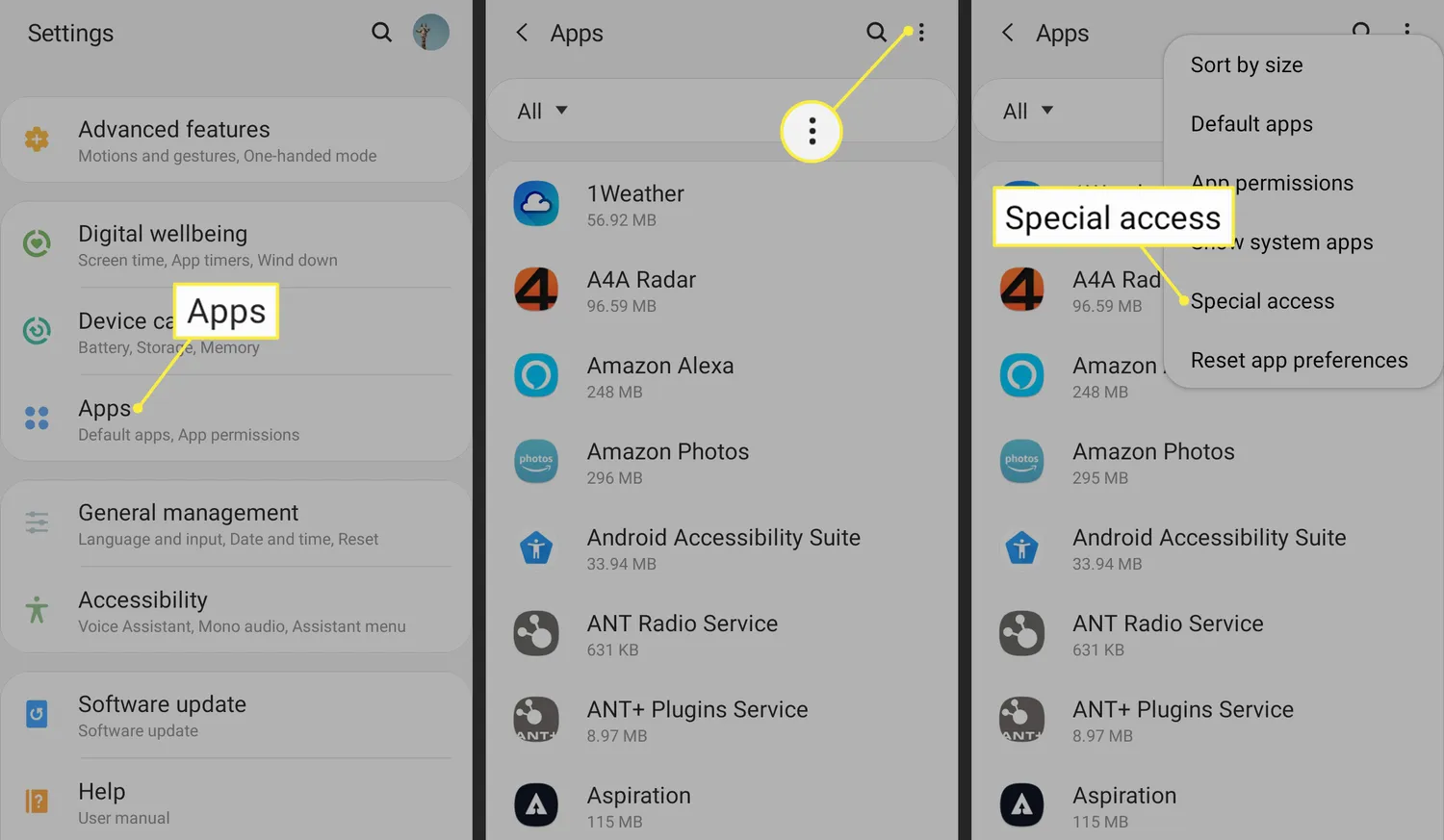
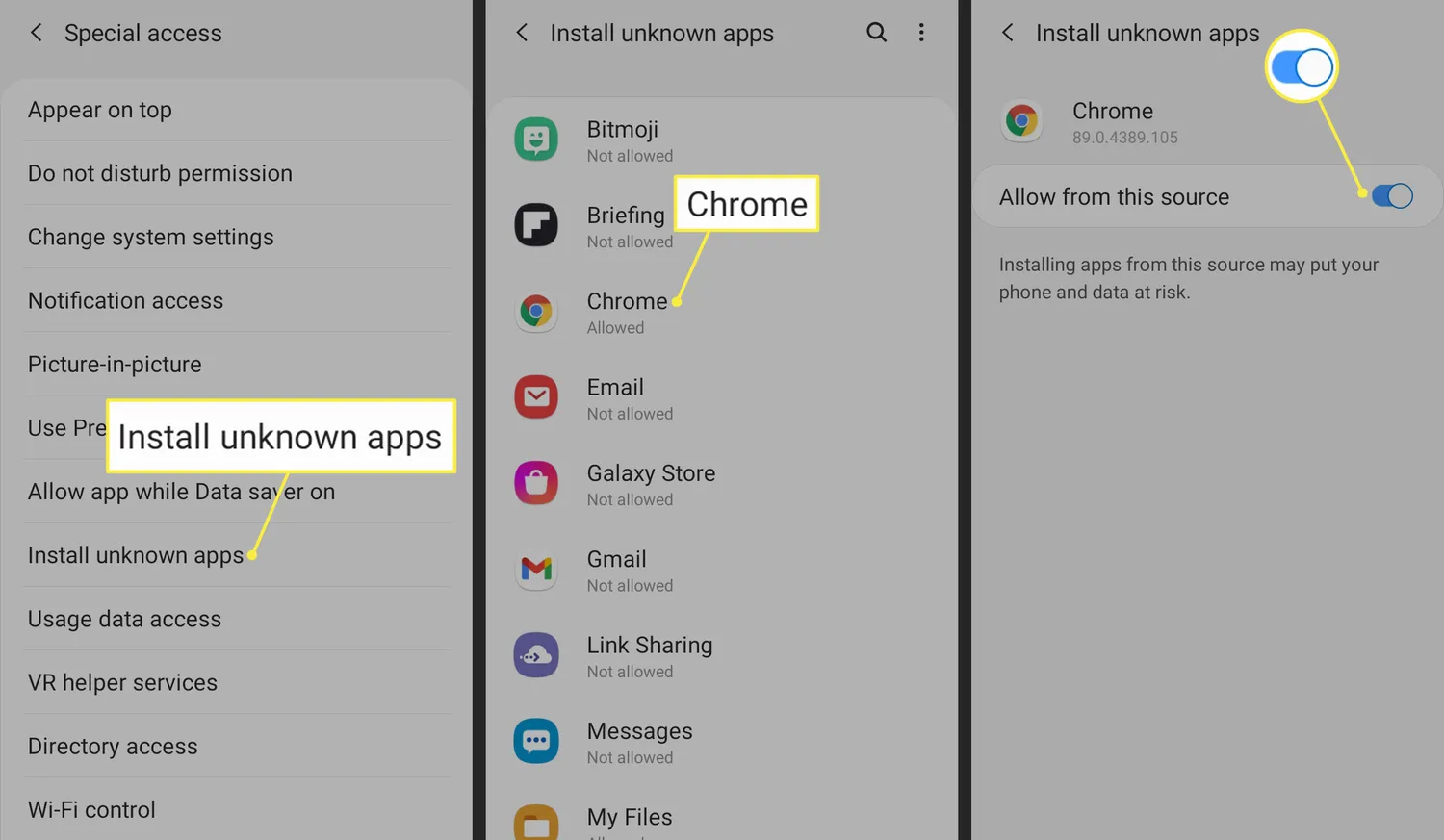
- 4Tap Install unknown apps.
- 5Tap your browser (for example Chrome).
- 6Switch on Allow from this source.
Step 2: Download and install the app
- 1On the Download page, tap the Android picture. The file downloads like any other file.
- 2If Android warns that this type of file can harm your device, tap Download anyway or OK. This is our official app, and our website is the only place we publish it.
- 3When the download finishes, open your browser's menu (the three dots) and tap Downloads. You can also find the file in your phone's Files app.
- 4Tap the file, then tap Install. After a few seconds the app appears with your other apps.
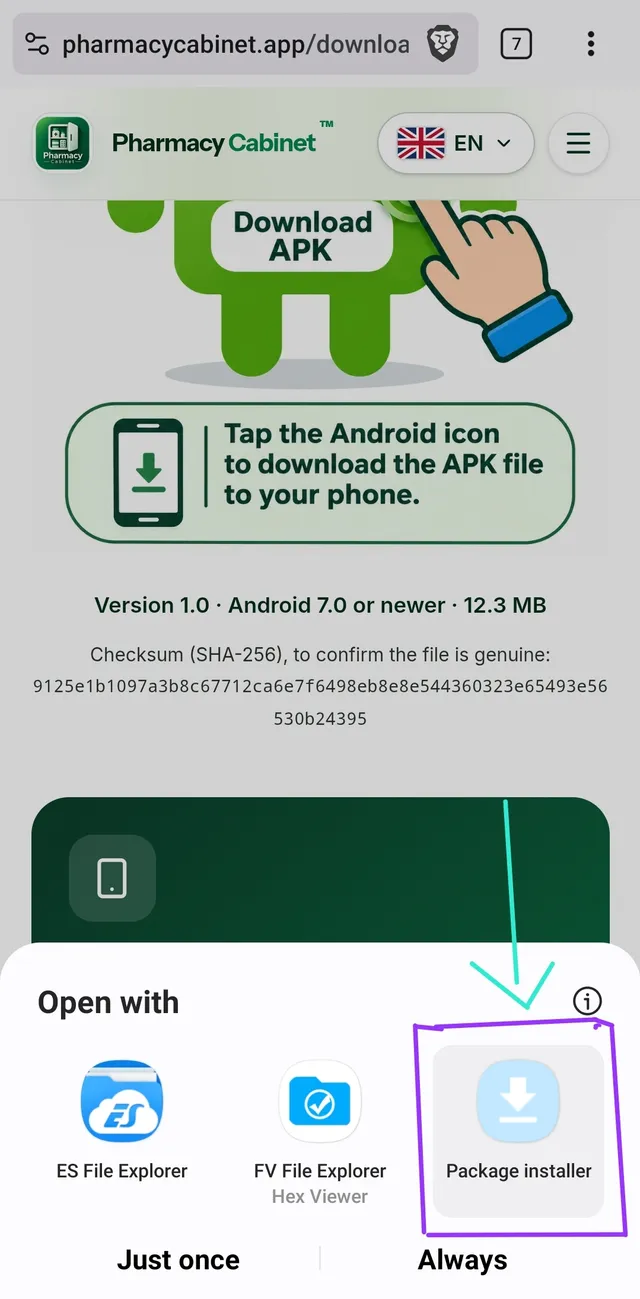
If Android asks “Open with”, choose Package installer. 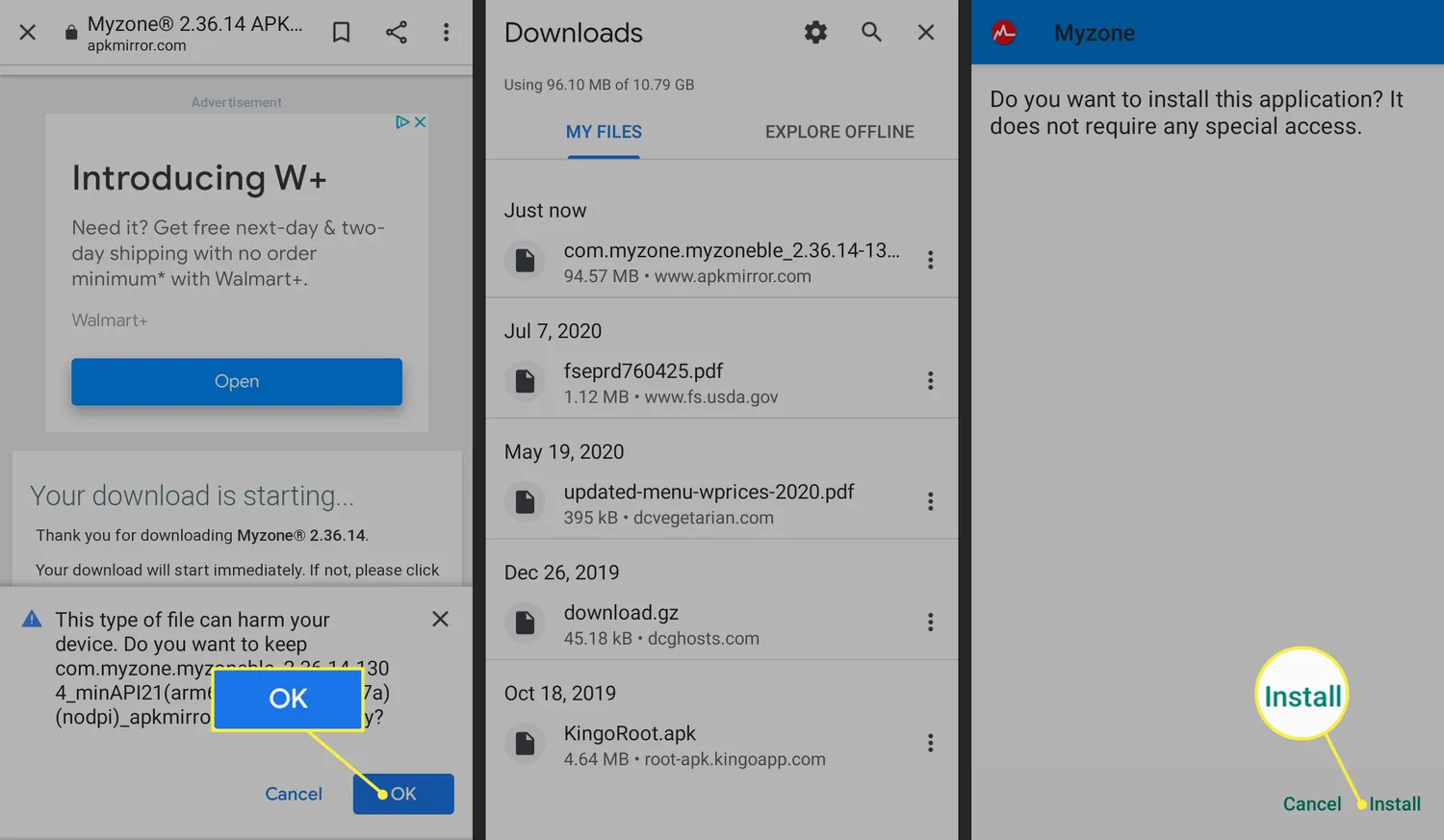
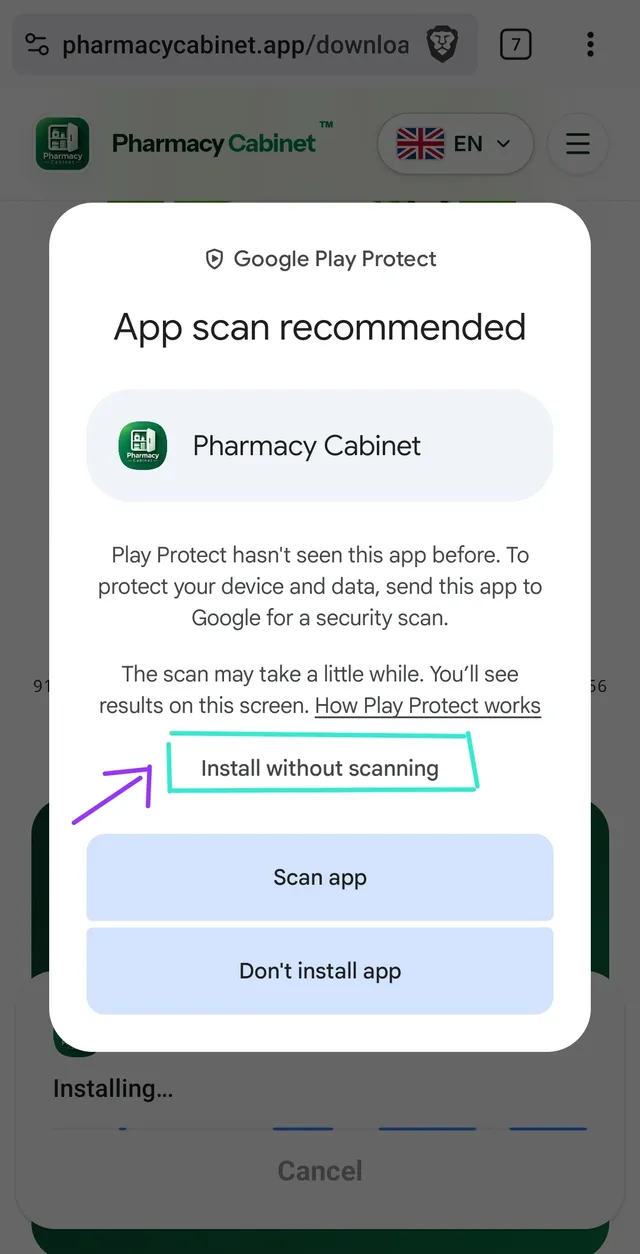
If Google Play Protect says “App scan recommended”, tap Install without scanning. - 5Open Pharmacy Cabinet and sign in.
Tip: the installer file takes up some space. You can delete it once the app is installed. The app stays on your phone.
Prefer to watch? A 2-minute video tutorial
 Watch the video tutorial on YouTube (YouTube, opens in a new tab)